What Splitser does
Your logged-in apps,
side by side.
Most browsers give you one page at a time and a row of tabs to hunt through. Splitser gives you several pages at once, arranged how you like, each one a complete browser in its own right.
What "tiling browser" actually means
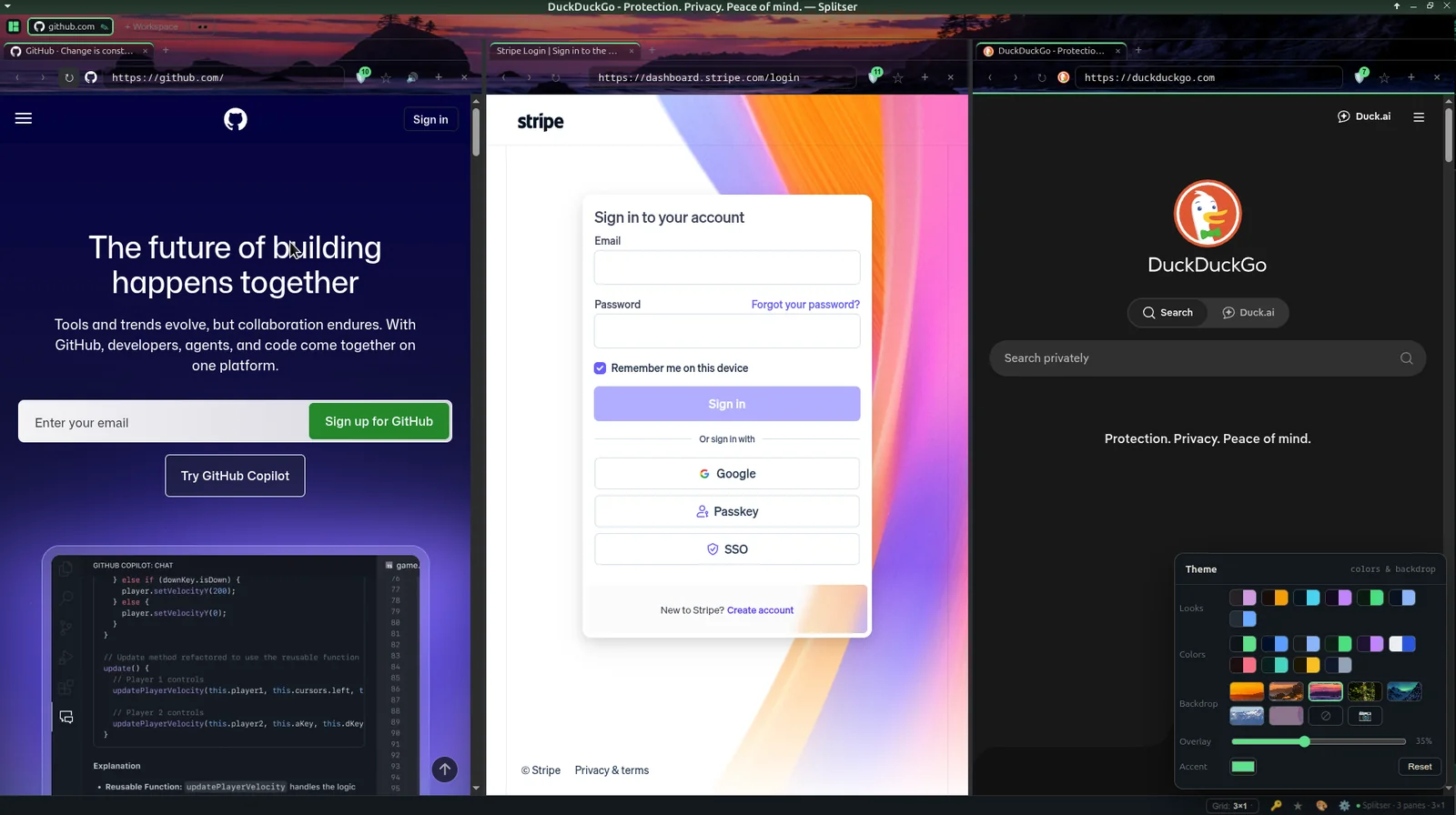
A tile is just a pane — a rectangle of the window with a website in it. Splitser splits the window into as many as you want and puts a different site in each: your email beside your calendar beside the documentation you are reading. No switching, no alt-tabbing, no losing your place.
The important part is what each pane is. It isn't a preview or an embedded frame — it's a real Chromium view, the same thing a normal tab is. Sites load first-party, which is the technical way of saying they behave exactly as they would in any other browser: you stay logged in, nothing needs a workaround, and pages that refuse to be embedded elsewhere simply work.
Then it goes one level further. A workspace is a whole arrangement of panes, saved together. One for work, one for a project, one for whatever you are researching this week — switch between them and every page is exactly where you left it, still loaded, still playing, still logged in.
What it looks like
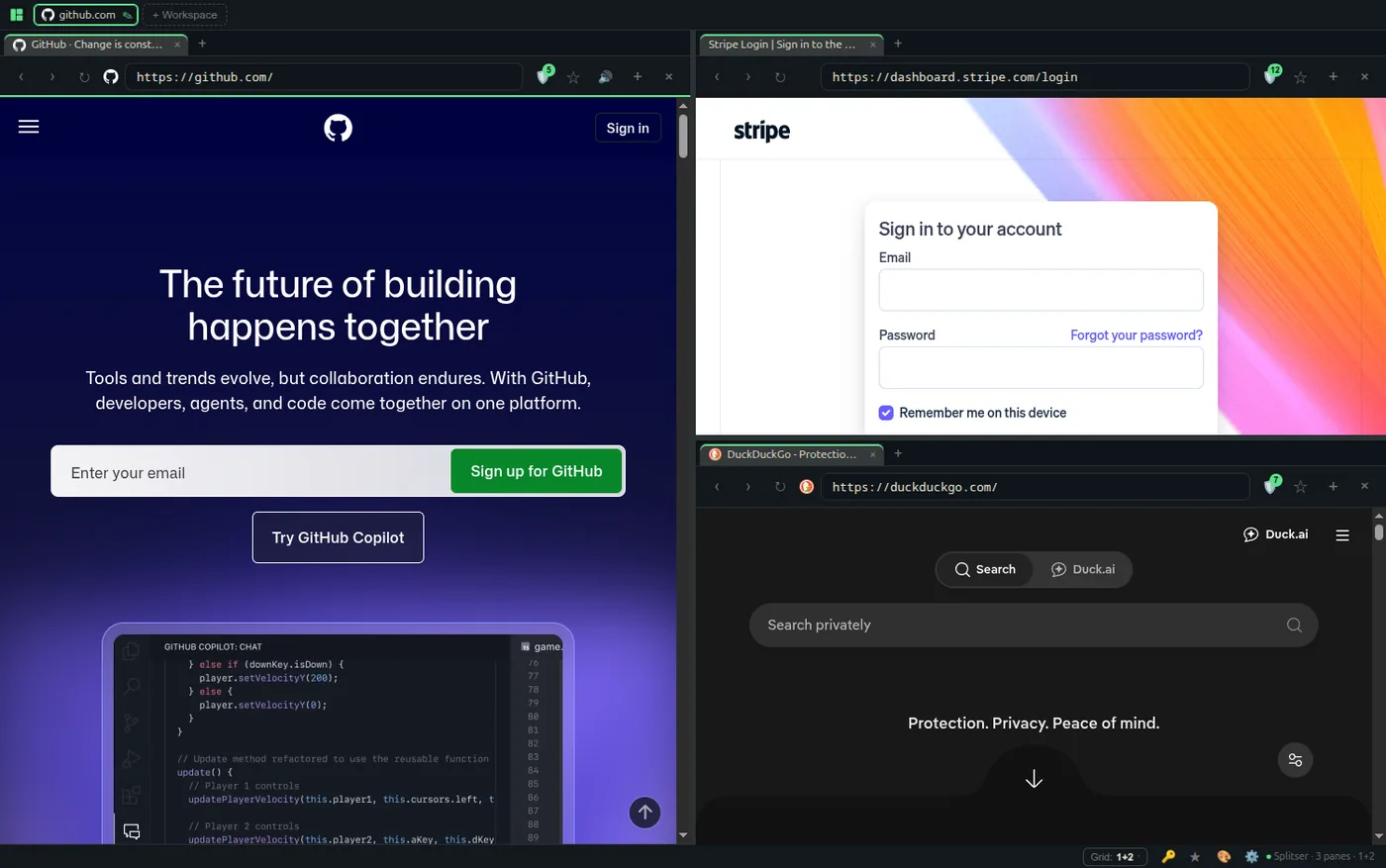
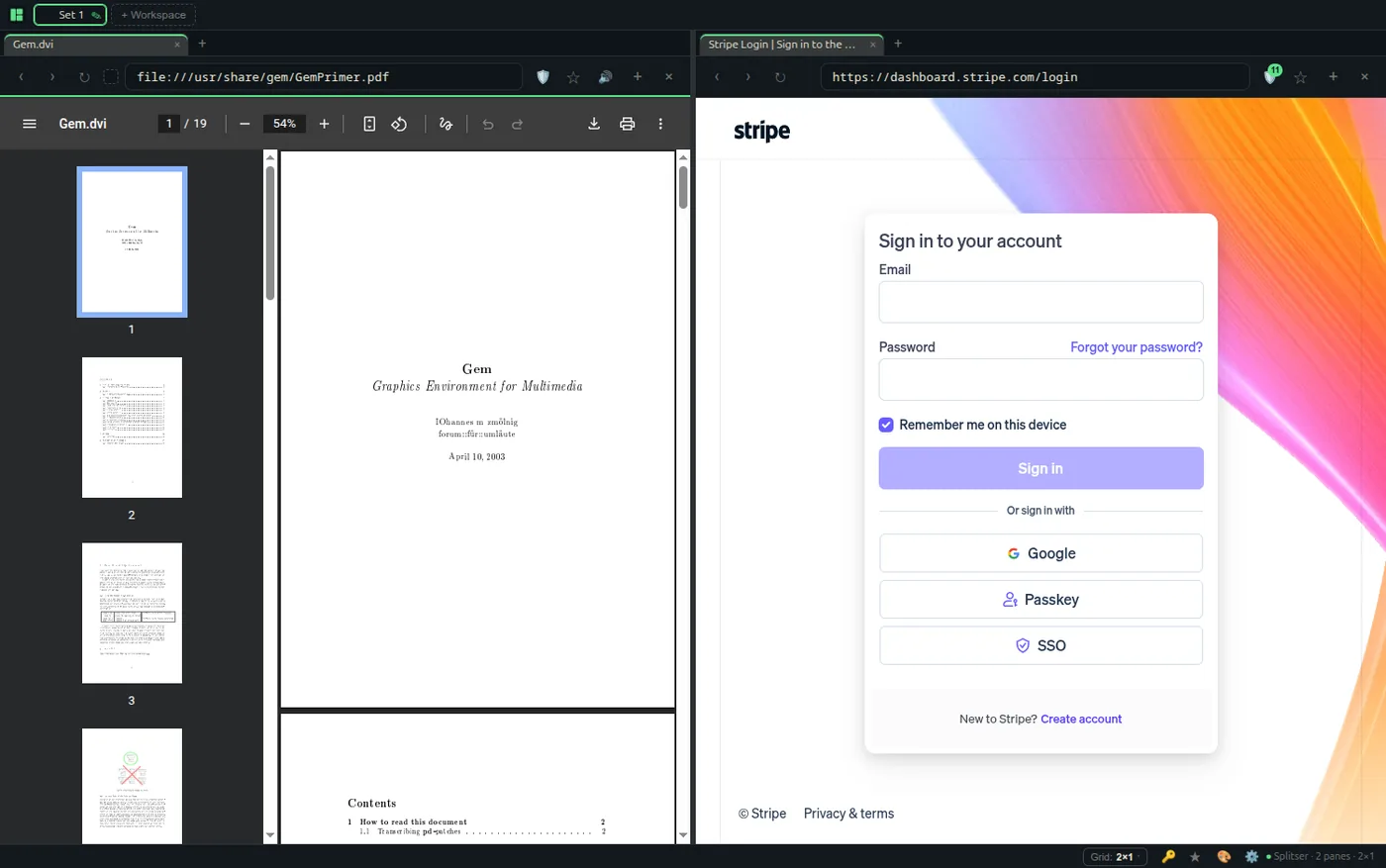
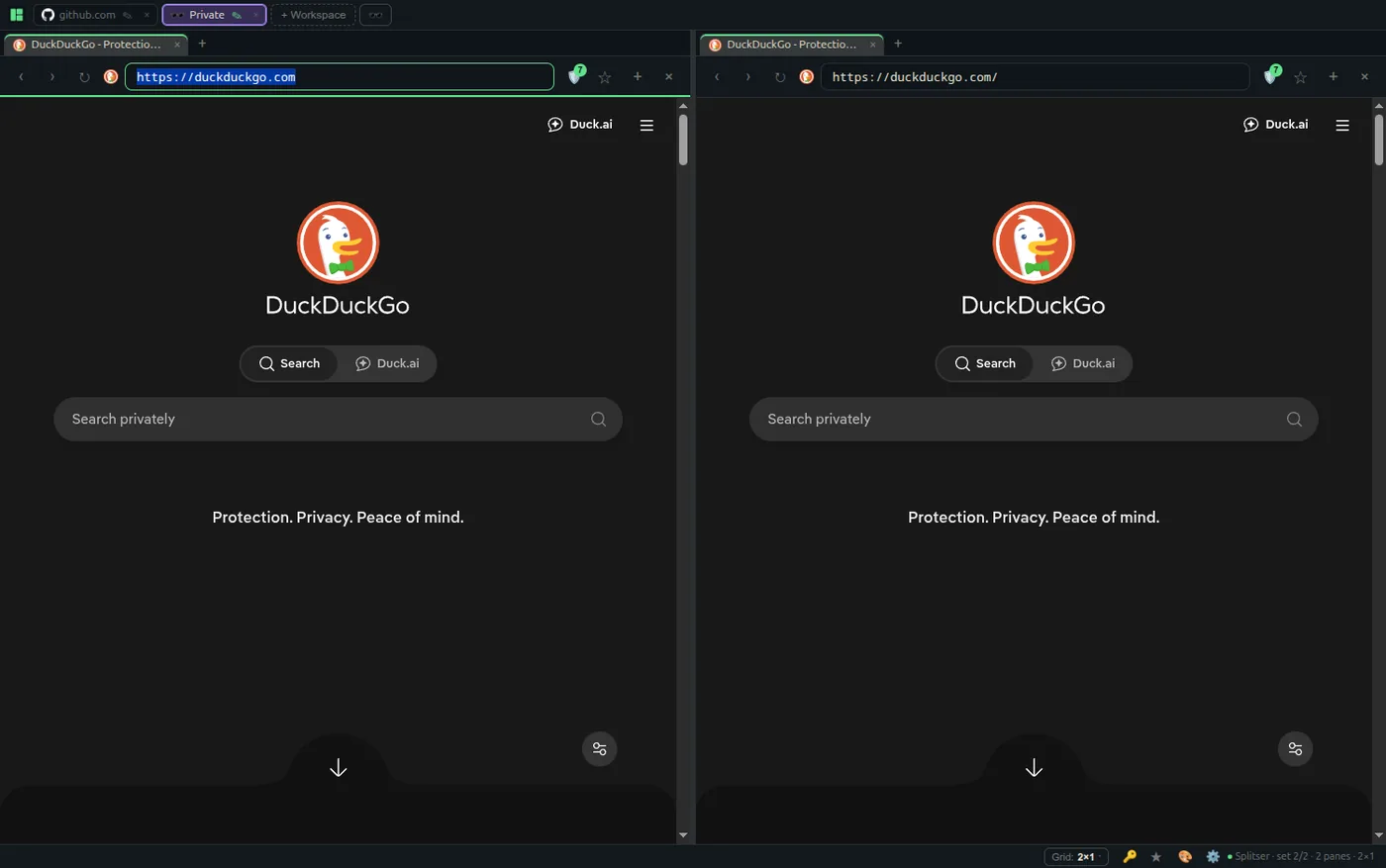
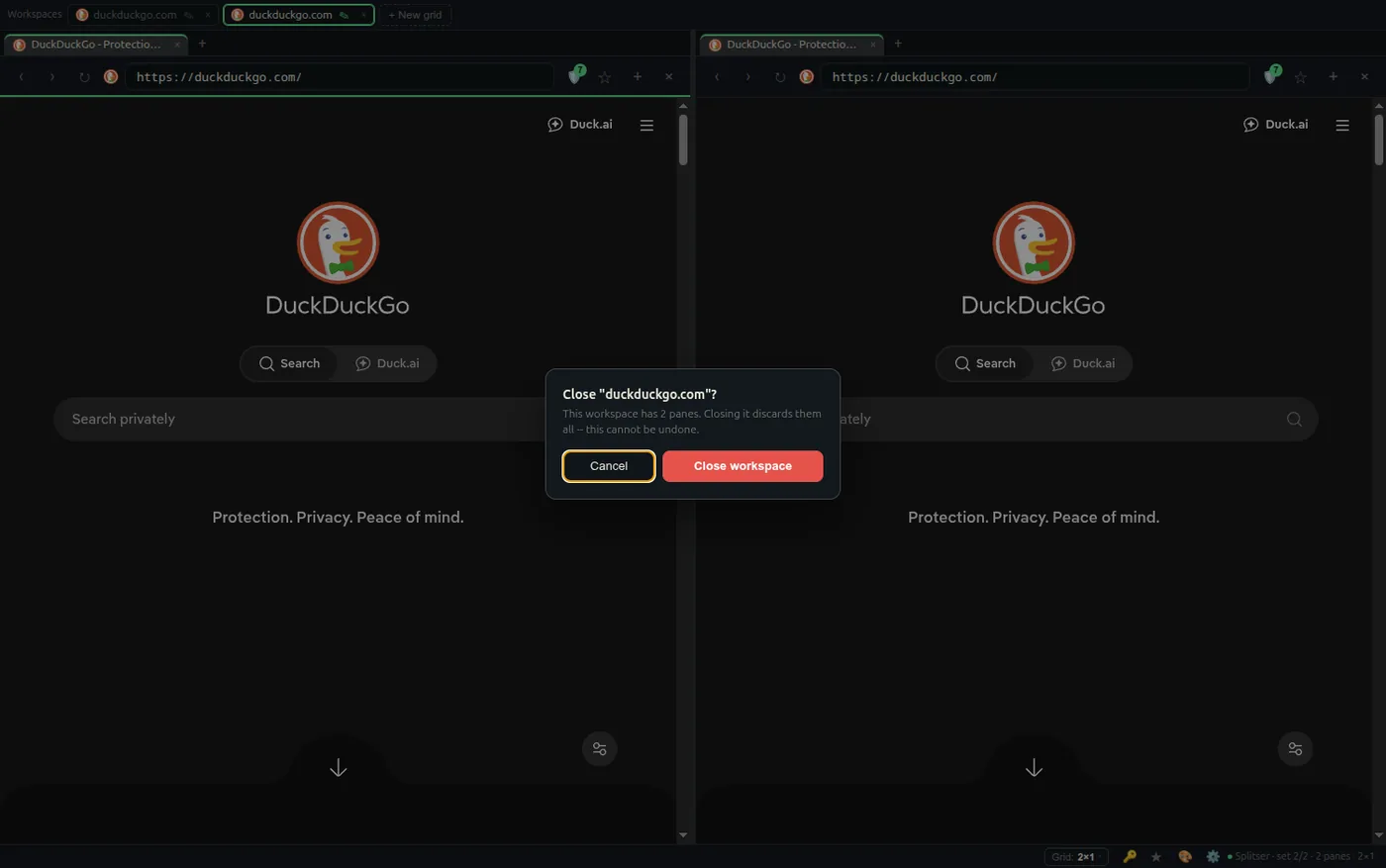
Real captures, not mockups. These are clean test profiles -- the tracker counts in each pane's shield are genuine.
Everything it does
All of this is built and working today. What isn't built is listed just as plainly.
Panes that are really browsers
Each pane carries its own toolbar -- back, forward, reload, favicon, address bar, bookmark star, split, close -- and its own navigation history -- right-click back or forward for the last ten pages and jump straight to one. Not a viewport onto one page. A browser.
Ads and trackers blocked, without being asked
EasyList and EasyPrivacy-class filtering runs at the session level, on by default -- it blocks the ad and tracker requests, rather than just hiding what arrives. Each pane carries a shield with a live count of what it stopped, and you can allowlist one site or switch the lot off.
Harder to fingerprint, and honest about how much
Sites can recognise you with no cookies at all, by making the browser draw something and hashing the result: the output varies by GPU, driver and font stack finely enough to work as a serial number, and it survives clearing your history. Splitser perturbs those readings per site, per session -- canvas gets low-bit noise on its colour channels, WebGL hands back a fixed, commonplace GPU string in place of your real one, and the offline-render path that audio fingerprinting relies on gets inaudible noise. The restraint is deliberate in both places: the alpha channel is left untouched because nudging it produces visible artifacts, and WebGL’s numeric capability values are still reported honestly, since lying about those breaks real WebGL apps without concealing anything -- the GPU name is the identifying part. Within a session the answer is stable, so a site that reads the same canvas twice sees the same thing: varying it per call is itself a detectable signal, and it breaks pages that re-read pixels for honest reasons. The seed changes on restart, so today's value cannot be used to recognise you tomorrow. It follows Shields, so dropping them on a site stops the farbling there too -- the escape hatch if a canvas-heavy app misbehaves. Separately, and not gated on Shields, the user agent no longer gives away Chromium's exact build: it now sends the frozen <major>.0.0.0 tail that real Chrome has used since User-Agent Reduction, with navigator.userAgentData normalised to match -- that one is about not standing out rather than about adding noise. Where it stops: this is a JavaScript-level patch, not a Blink-level one. A page can read around it by taking a pristine prototype from a fresh iframe, and Web Workers are not covered at all -- a worker gets its own global scope that a preload script cannot reach, so a fingerprinter that measures inside one (browserleaks.com does) still sees your real values. It raises the cost of commercial fingerprinting. It does not stop someone who is deliberately working around it.
You can see who you are actually talking to
Every pane's address bar carries a lock: green for HTTPS, amber for plain HTTP, so a page that is not encrypted says so rather than saying nothing. Click it for the connection status and, on HTTPS, the site's certificate -- who it was issued to, who issued it, how long it is valid, and its SHA-256 fingerprint. Splitser only shows what Chromium already verified; it never overrides the trust decision, so a bad certificate is still refused exactly as it was before. Nothing is shown for local files or localhost, where the padlock would be theatre. And when a certificate is actually bad -- expired, self-signed, wrong domain -- you get a page telling you which of those it is, with a way back and a way through, rather than a pane that just fails to load and leaves you guessing.
See what every tab is costing you
A task manager in the footer lists every tab in every workspace, sorted by memory, with the workspace and pane each one lives in. Next to live CPU% it shows cumulative CPU -- seconds of processor time since that tab started, which is the column that catches a hidden tab quietly burning a core for days -- and it marks whatever is making noise. Reload a row to hand its memory back without losing the tab, or click it to jump straight there. Hovering any tab shows the same thing in miniature: title, address, and what that tab is holding. It measures; it does not manage -- nothing is discarded or throttled on your behalf, which is a deliberate choice, not an oversight. The totals are honest about the arithmetic too: a renderer shared by several tabs is counted once, and cross-origin frames that belong to no tab are listed separately as unattributed -- so the figure reconciles with what ps tells you instead of double-counting.
Free, with a tip jar if you want one
Click the Splitser label in the footer and you get the exact build you are running, a link back here, and a Support Splitser button -- pay what you think it is worth, or nothing at all. Nothing is gated, nothing nags, and no feature is behind it.
No server, no account, no telemetry
No backend to sign in to, nothing phoning home, no analytics. The one thing it fetches for itself is the ad-block filter list, once, which it then caches -- after that the only traffic is the sites you point it at.
Workspaces: a whole grid you can flip between
A workspace is an entire independent grid of panes with its own layout. The + Workspace button in the Workspaces bar opens a fresh one. Each pill carries a favicon and a name -- taken from the first site you open there, and renamable in place -- and the bar wraps across rows as you collect them. The workspace you left keeps running, hidden but never torn down, so its audio keeps playing and every page holds its state. Close the app and it reopens the way you left it, down to the window's size, position and which monitor it was on -- and if that monitor is gone, it comes back centred on the one you still have rather than off the edge of nothing. Drag the pills to put them in the order you want, and that order survives a restart. A workspace you are not looking at will tell you when something happened in it: its pill carries a count of pages that changed title or navigated while you were elsewhere, cleared the moment you look. First loads do not count and a page that rewrites its own title on a timer cannot pad the number. Three levels deep: workspaces hold panes, panes hold tabs.
It can be your default browser
Set it as the system default and links from anywhere else -- your mail client, a chat window, a terminal -- open in Splitser. A clicked link lands as a new pane in the workspace you are already in, rather than a new window stacked on top of your work, which is the point of a tiling browser. Launching it twice does not give you two copies either: the second launch hands its link to the window already running. For anything scripted, splitser --new-workspace [url] instead opens a new single-pane workspace and switches to it, leaving what you were looking at exactly as it was; only http:// and https:// are recognised. Inside Splitser, middle-clicking a link opens it as a new pane, and Ctrl+middle-click opens it as a new tab in the pane you clicked, for when you want it beside the page rather than beside the pane. On Linux: xdg-settings set default-web-browser splitser.desktop.
Screenshot the whole page, not the visible bit
Right-click any page and capture it end to end -- the entire scrollable length in one image, not the slice you happen to be looking at. You get a preview first, then save it as a PNG or a PDF, or drop it straight on the clipboard. Very tall pages are scaled to stay inside image limits, and the preview says so when that happens rather than quietly handing you something shorter than you asked for.
Split any pane, either way, as deep as you like
Ctrl+Shift+E splits the pane you are in to the right; Ctrl+Shift+O splits it below. Only that pane divides -- everything else stays exactly where you put it, which is the difference between a split and a re-shuffle. Splits nest as far as you want, so you can end up with a tall reference pane beside a stack of three, and it is still just panes. Drag any boundary to reproportion, or grab the round handle where two boundaries cross to move both axes at once. The arrangement survives a restart and comes back the way you left it, and nothing re-parents when you split, so a page never reloads and never loses what you had typed into it.
Columns, or a grid -- every border drags
Columns by default, or a 2×2 / 3×3 grid from the status bar or Ctrl+1 / Ctrl+2 / Ctrl+3, per set. Every internal border resizes -- columns, rows, and the corners where they cross. A column divider resizes that column down all the rows, a row divider resizes that row across all the columns, and the diagonal grip where two dividers meet reproportions both axes in one drag. Sizes persist per layout, and it all drags right over a live page.
Tabs inside every pane
Each pane carries its own tab strip -- the strip's + opens a tab, the tab's × closes it, click to switch. Every tab wears a colour dot taken from its site, so the same site is always the same colour and tabs group at a glance; right-click to pick your own. A background tab is a real, live view, hidden and never destroyed, so audio keeps playing and the page keeps its state.
Links open as panes
A target=_blank link or a window.open popup opens a new pane beside the one you clicked from -- not a new OS window stacked on top of your work.
Real find in page
Ctrl+F runs Chromium's native find: actual highlighting, an actual match count, next and previous. Not a script crawling the DOM and guessing.
Shortcuts that fire anyway
Keyboard shortcuts reach the shell even while a page has focus -- they're forwarded from the main process, so a page can't swallow them.
Per-pane zoom and mute
Ctrl+= / − / 0 zooms one pane without touching the others. Ctrl+M mutes it, and any pane making noise grows a speaker button.
An address bar that remembers
Type, and matches from your own browsing history drop down -- arrow keys and Enter to pick. Ranked by how often you actually go there.
Bookmarks and downloads
Star a page with Ctrl+D and reopen it from the ★ panel. Downloads land in your OS Downloads folder, with a ↓ panel tracking progress.
Session restore, all three levels
Quit with four sets open, each with its own layout, panes and tabs -- and the set you were on -- and it all comes back. On a fresh install it starts you with GitHub next to your Stripe dashboard.
Permission prompts that mean it
Camera, microphone, geolocation and notifications raise a real allow/deny dialog. Everything else defaults to deny -- a page gets nothing it has not been handed.
The browser bits you would miss
A right-click menu on any page -- open a link in a new pane or tab, image actions, copy and paste, and Inspect element -- DevTools opens in a window of its own. Sign-in dialogs for sites behind HTTP Basic or Digest auth, prefilled from the vault. An accent line marking which pane has focus, and Ctrl+P to print that pane.
Make it look like yours
Each workspace gets its own style: one-click looks, ten colour presets, four separate pickers for background, toolbar, accent and text, and a backdrop behind the chrome -- seven photographs, four gradients, or an image of your own. Set a backdrop and you can hit Match colours to pull the whole palette out of that image -- a dark, image-tinted background and toolbar, with the picture's most vivid colour as the accent. Save what you land on as a named theme, or pass it to someone else as a short code.
Settings, and your data stays put
Set your home page and search engine, and choose how downloads are handled: straight into your Downloads folder, asked about every time, or remembered per site -- pick a folder once for a given site and everything from it after that saves there. Clear history, bookmarks or session whenever you like. It all lives in plain files on your machine.
Give a site its own icon
Some sites have no favicon at all -- localhost, dev servers, internal tools -- and a row of blank squares is hard to read at a glance. Click a pane's favicon and set your own: an emoji, a colour with the site's initial, or an image you upload. It applies to every tab on that host and stays put.
Keys that reach the shell
Shortcuts are forwarded from the main process, so they fire even while a page has focus. A page can't eat your Ctrl+T.
- Ctrl+T New tab in this pane -- what it does in any other browser
- Ctrl+Shift+T Reopen what you just closed -- a tab, or a whole workspace if that is what you closed
- Ctrl+\ New pane in this workspace, to the right
- Ctrl+Shift+E Split the focused pane to the right -- the other panes stay put
- Ctrl+Shift+O Split the focused pane below -- the other panes stay put
- Ctrl+Tab Next workspace -- wraps round to the first
- Ctrl+Shift+Tab Previous workspace -- wraps round to the last
- Ctrl+Shift+N New private workspace -- nothing is saved and it is not restored
- Ctrl+Shift+D Bookmark the whole workspace, not just the page
- Ctrl+W Close the tab you're in -- last tab closes its pane, last pane closes its set
- Ctrl+1 Lay this set out as columns
- Ctrl+2 Lay this set out as a 2×2 grid
- Ctrl+3 Lay this set out as a 3×3 grid
- Ctrl+L Focus the address bar
- Ctrl+R Reload the pane
- Ctrl+F Find in page
- Ctrl+D Bookmark the page
- Ctrl+K Open the vault
- Ctrl+M Mute the pane
- Ctrl+P Print the focused pane
- Ctrl+= Zoom in
- Ctrl+− Zoom out
- Ctrl+0 Reset zoom
What it doesn't do
Worth knowing before you download, rather than after.
Streaming services
No Widevine, the DRM component streaming sites require -- so Netflix, Disney+, Prime Video, Spotify and the like will not play. Splitser recognises those sites and says so plainly in the pane, rather than leaving you with the service's own cryptic error code. Use your normal browser for those. Video without DRM -- YouTube, Twitch, most embedded players -- is unaffected.
Chrome extensions
You can't install extensions from the Chrome store. Ad and tracker blocking and a password vault are built in instead, which covers what most people add extensions for.
Phones and tablets
Desktop only, and not planned. The whole point is several windows at once, which a phone screen cannot usefully do.
Signed installers on Windows and Linux
macOS is done -- those builds are signed with a Developer ID and notarised by Apple, so they open without a warning. Windows and Linux aren't signed yet, so SmartScreen will still stop you the first time. The download page walks you through it, and publishes checksums for every file.
Try it.
Free, and free forever. Of v0.1.42, Debian / Ubuntu has been run by a human; the other 5 are built but untested. The download page says which is which, per file.
Download v0.1.42